Citron Emulator setup guide
Citron Emulator Setup: First Launch, Game Folder, and Safe Settings
Start with the official release page, launch Citron once, add a folder containing your own legal game backups, and change one setting at a time so troubleshooting stays reproducible.
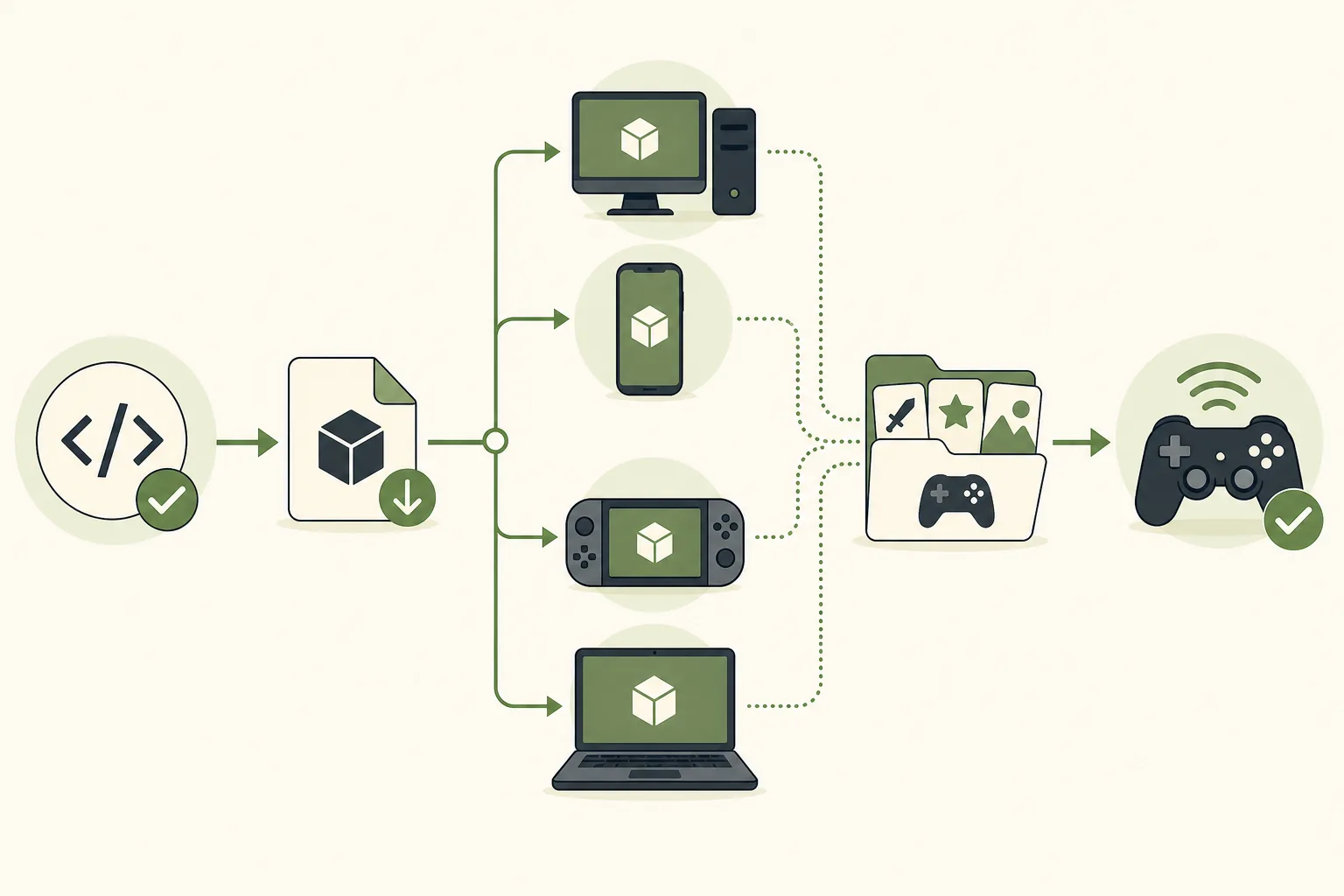
What is the cleanest Citron Emulator setup path?
A reliable Citron Emulator setup has four boundaries: choose a real release source, keep the emulator separate from private console files, add only folders you are legally allowed to use, and record the build before changing graphics or controller options. The first launch should be a small test, not a large batch of imports and tweaks.
If you are asking how to download games to Citron Emulator, this guide does not provide game downloads, ROMs, NSP/XCI files, keys, or firmware. Use personal backups of games you own and point Citron at the folder that contains those backups. Citron does not need a Windows .exe file for a Switch game; an EXE offered as a game download is usually an unrelated installer or a serious malware warning.
The current release facts were checked on August 22, 2026. The stable tag remains 2026-04-27. Windows and Android remain on CI commit 22d5038ec from August 4, Linux remains on 22d5038ec from August 6, and macOS is on 356b62908 from August 21. This page links to release pages rather than guessing a temporary file URL, so you can see the filename, platform, date, and source before downloading.
Before you launch
Prepare these items before changing Citron settings
A short preparation check prevents most first-launch confusion and makes a later compatibility report useful.
| Item | Recommended starting point | Why it matters |
|---|---|---|
| Emulator build | Stable 2026-04-27, or the official CI page when you need a newer fix | A release tag and build hash let you reproduce a result after the nightly page moves. |
| Game files | A folder of your own legal backups, kept separate from the emulator folder | Mixing downloads, caches, and game files makes permissions and troubleshooting harder. |
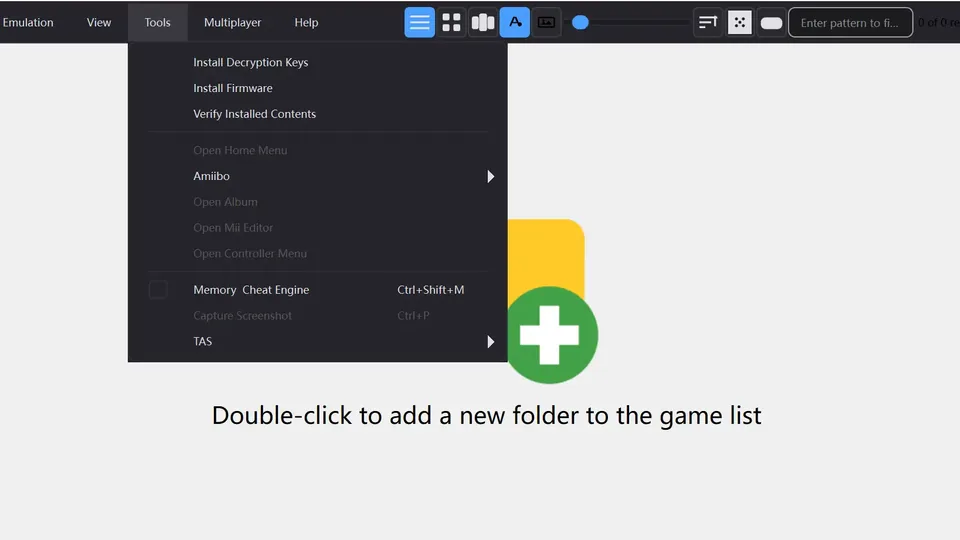
| System files | Your own legally dumped keys and firmware, if your setup requires them | Citron does not include or link private console files and cannot make an unlicensed source safe. |
| Input device | One controller that the operating system detects before Citron starts | Testing the controller outside the emulator separates OS mapping problems from emulator mapping problems. |
| Rollback note | Write down the release tag, hash, settings, and the first game tested | One-variable changes are much easier to undo than a large collection of undocumented tweaks. |
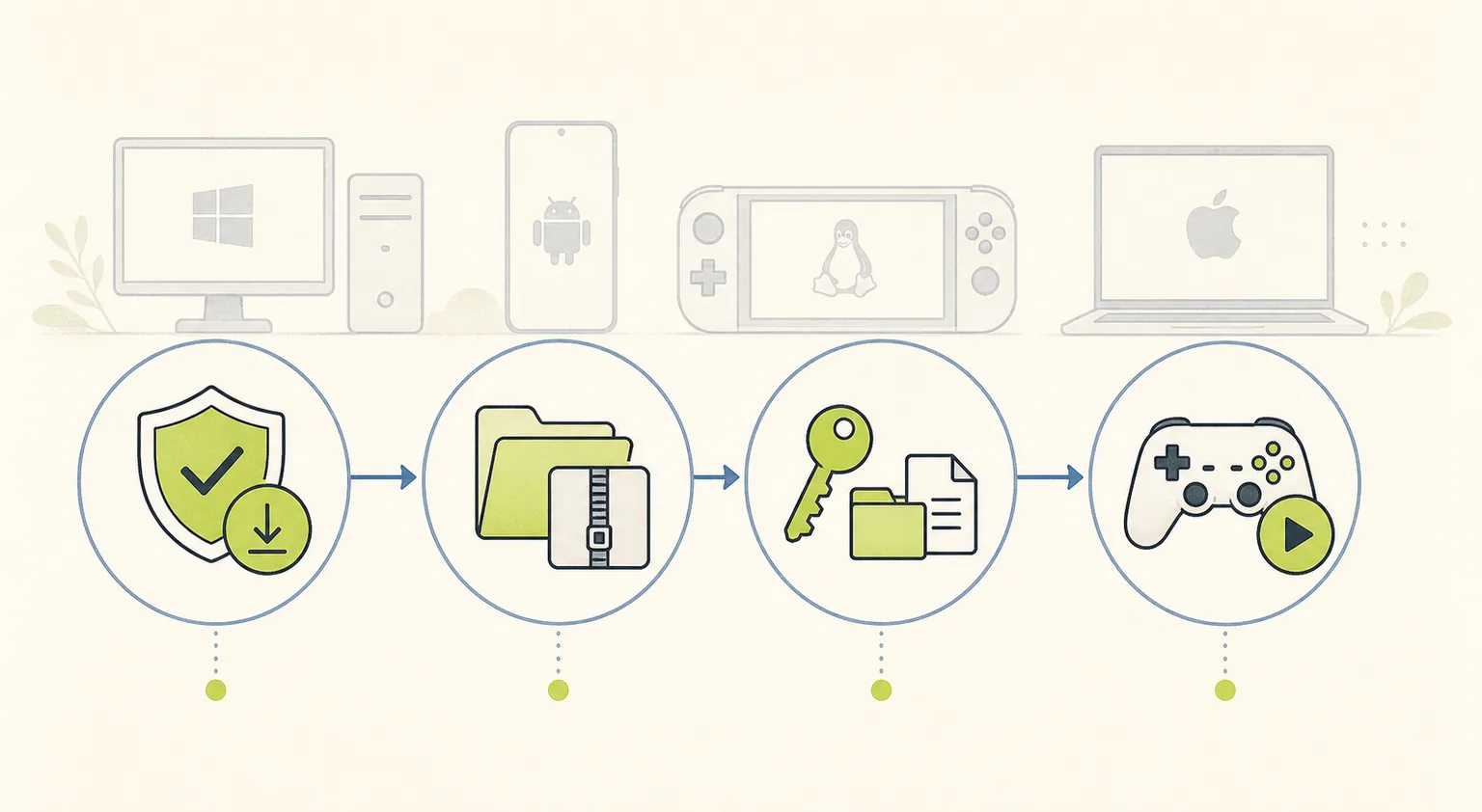
First launch workflow
Complete the first Citron Emulator setup in six controlled steps
Finish the basic launch before importing a large library. If a step fails, stop there and fix that layer first.
Verify the release page
Open the official citron-neo/emulator stable release or the matching citron-neo/CI platform tag. Confirm the operating system, architecture, release channel, publication date, and build hash before you download.
Install or extract completely
Extract a Windows ZIP before launching, allow execution for a Linux AppImage, install the Android APK only from the official release page, or open the macOS DMG through the normal system flow. Do not run a desktop build from inside an archive.
Launch Citron with default settings
Open the emulator once before importing games. Let it create its configuration and cache folders, then close it normally. This gives you a clean baseline for later comparisons.
Import only your own local files
Use the emulator's folder or directory setting to select a location that contains your own legally obtained backups. Do not paste a mirror URL and do not treat a random game archive as a supported source.
Test one title and one controller
Refresh the game list, start one known test title, and check buttons, sticks, audio, graphics, and save behavior. Record the exact build and the point where a problem appears.
Change one variable at a time
If the result is poor, change one graphics, input, or compatibility option, then repeat the same test. Avoid applying a large settings pack that hides which change helped or hurt.
Game directory setup
Add a game folder without looking for an EXE
The phrase how to find games exe file on Citron Emulator reflects a common platform misunderstanding. Citron is an emulator, not a Windows game launcher. A Switch game backup is not expected to be a Windows .exe, and you should not download an EXE from a page promising a ready-made game. Use the file formats supported by your own legal backup workflow and select the containing directory inside Citron.
Citron's exact menu names can vary by build, but the pattern is stable: open the game-directory or library setting, choose Add or Browse, select the folder rather than a web page, save the path, and refresh the list. If a title does not appear, confirm the folder actually contains the expected backup, the operating system account can read it, and the file was not left inside a compressed archive.
Keep base content, updates, and DLC organized in a way that you can explain later. Do not mix unrelated archives, password-protected downloads, or files from an unknown mirror into the same directory. A clean folder is safer and makes a compatibility report more credible.
- Use a stable local path that will not move after you add it to Citron.
- Keep emulator binaries and personal game backups in separate top-level folders.
- Check read permission and available storage before refreshing the library.
- Scan or verify files with your normal operating-system security tools; do not disable protection for a mirror.
- If the list is empty, test the path with one known backup instead of importing everything at once.
Games/Owned-Backups/The example path is only an organization example. It is not a download location and does not imply that this site provides game files.
Baseline settings
Use a conservative Citron settings baseline first
There is no universal configuration for every game. Start with defaults, make a note of the build, and adjust only when a repeatable symptom points to a specific setting.
| Area | Start with | Change only when |
|---|---|---|
| Graphics API | The default backend for your platform | A title has a documented rendering issue or the log identifies a backend failure. |
| Resolution scale | Native or 1x | The baseline is stable and you have measured performance headroom. |
| Shader cache | Let the cache build normally | A cache was created by a different build or repeated stutter has a reproducible cause. |
| Controller mapping | One standard gamepad layout | The operating system sees the controller but Citron misses or duplicates an input. |
| Audio | Default output and latency | Only audio crackle or desynchronization is repeatable after the baseline test. |
| Power and frame limits | System defaults | You have recorded a clear battery, heat, or frame-pacing tradeoff. |
Focused troubleshooting
Common first-launch Citron Emulator setup problems
Match the symptom to the narrowest check first. Reinstalling random packages or changing every setting at once usually removes useful evidence.
Citron will not open
The package may be incomplete, still inside an archive, blocked by the operating system, or built for a different architecture. A Windows ZIP, Android APK, Linux AppImage, and macOS DMG are not interchangeable.
Next check: Return to the official release page, verify the platform asset, and test a clean extraction or permission step.
The game list is empty
Citron may be pointing at the wrong folder, a folder it cannot read, or a compressed archive that has not been extracted. The directory can also be empty because the backup is not in the expected supported format.
Next check: Browse to one known local backup, save the directory, refresh, and inspect permissions before adding more files.
A title launches to a black screen
A black screen can come from compatibility, graphics backend, driver, keys or firmware mismatch, shader state, or a bad dump. It is not proof that a newer random download will fix the title.
Next check: Record build hash and graphics backend, restore defaults, then compare one controlled change with the compatibility guide.
The controller is missing or duplicated
Check whether the operating system detects the controller first. Steam Input, a desktop remapper, and Citron's own mapping can also stack and create duplicate buttons.
Next check: Keep one mapping layer at defaults, reconnect the controller, and test the same input in a simple menu.
The update changed a working setup
Nightly tags move and a new upstream commit can change behavior. Replacing the old folder makes it harder to prove which build introduced the regression.
Next check: Keep the previous official build, configuration backup, and exact hash until the new build passes the same test.
A page offers an EXE, ROM pack, keys, or firmware bundle
That is outside a clean emulator setup and may expose you to malware or copyright violations. Citron does not need a mystery EXE to make a Switch backup playable.
Next check: Close the page and use the official GitHub release source plus your own lawful local files.
Setup FAQ
Citron Emulator setup questions
How do I download games to Citron Emulator?
Citron Neo Wiki does not provide game downloads or ROM links. Use backups of games you own, keep them in a readable local folder, and add that folder through Citron's game-directory or library setting.
How do I find a game EXE file for Citron?
You do not need a Windows EXE for a Switch game backup. Citron is an emulator; an EXE offered as a ready-made game download is usually an unrelated installer or a malware warning.
Should I install keys and firmware before the first launch?
Follow the requirements of the title and build you are lawfully using. If Citron asks for system files, use only files dumped from your own hardware and read the separate keys and firmware guide. This site does not host those files.
Where should I put the Citron game folder?
Use a stable local folder that your account can read, such as a dedicated Games/Owned-Backups directory. Keep it separate from the emulator binary and avoid moving it after adding the path.
Why does Citron show an empty game list?
Confirm that you selected the containing directory, the backup is extracted and supported, the path is readable, and the library was refreshed. Test one known file before importing a large collection.
Should I use stable or the current nightly for setup?
Start with stable 2026-04-27 when you want a known baseline. Windows and Android CI use 22d5038ec, Linux uses 22d5038ec, and macOS uses 356b62908; test a nightly only when you need a newer fix and can keep a rollback copy.
Is Citron Neo Wiki an official emulator download site?
No. It is an independent guide that points to public citron-neo GitHub release pages and explains setup boundaries. It does not host emulator packages, games, keys, or firmware.
First-party sources
Release sources checked for this setup guide
Release pages are used as the download destination because they preserve the channel, filename, platform, date, and source context. No temporary direct asset URL is claimed here.
- Citron stable release 2026-04-27Stable baseline and platform release context.
- Citron CI releasesWindows, Android, Linux, and macOS nightly channels; current hash checked August 7, 2026.
- Citron Neo keys and firmware guideLegal boundary and troubleshooting context for user-supplied system files.