Steam Deck setup guide
Citron Emulator on Steam Deck: Install, Game Mode, and Safe Updates
Use the official Linux AppImage, make it executable in Desktop Mode, add it as a non-Steam game, and keep a stable rollback copy before testing the August 7, 2026 nightly.
Can Citron Emulator run on Steam Deck?
Yes. Steam Deck can run Citron through the official Linux x86_64 AppImage. The clean setup path is to work in Desktop Mode first, download the correct x86_64 asset from the official GitHub release, mark it executable, test one launch, and then add that same file to Steam for Game Mode.
Citron Neo Wiki does not host the emulator package. On August 7, 2026, the official Linux CI tag points to commit 22d5038ec. The standard x86_64 AppImage is 57,650,946 bytes, while the x86_64_v3 AppImage is 57,802,807 bytes. Most Steam Deck users should start with the standard x86_64 build because it is the less specialized choice.
A successful launch does not guarantee identical performance in every game. Compatibility depends on the game, graphics backend, firmware and keys legally dumped from your own console, driver behavior, and the exact Citron build. Keep changes controlled so you can identify what helped.
Before installing
What you need for a clean Steam Deck setup
Prepare the files and rollback plan before changing settings. This prevents most confusing first-run failures.
| Requirement | Recommended starting point | Why it matters |
|---|---|---|
| Steam Deck mode | Desktop Mode for installation | File permissions and non-Steam shortcuts are easier to manage there. |
| Citron package | Linux x86_64 AppImage from the official release | Windows ZIP and Android APK files are not native SteamOS packages. |
| Storage location | A stable folder such as Home/Applications/Citron | Moving the AppImage later can break the Steam shortcut. |
| Legal system files | Your own dumped keys and firmware | Citron does not include Nintendo system files. |
| Rollback copy | Keep stable 2026-04-27 in a separate folder | Nightly tags update in place and can introduce regressions. |
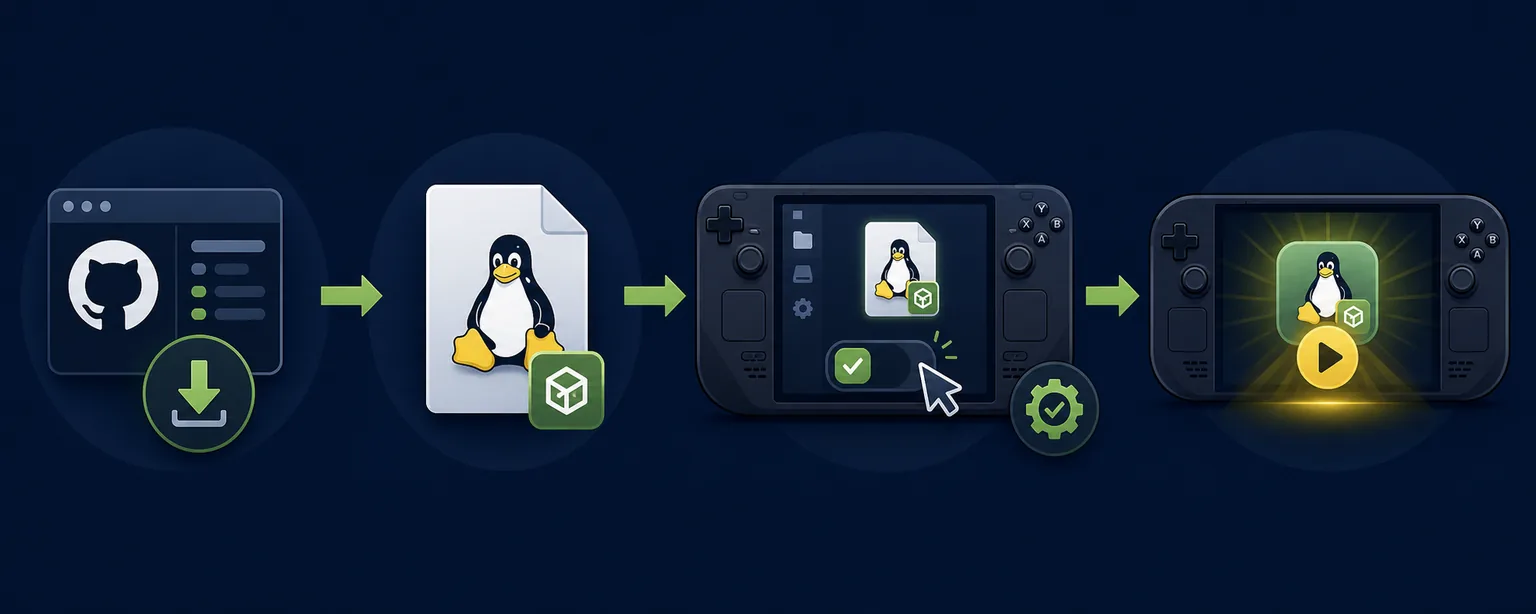
Desktop Mode
Install the Citron AppImage in six steps
Do not rename or move the file after adding it to Steam unless you also update the shortcut target.
Open the official Linux release
Use the Citron CI nightly-linux tag or the stable 2026-04-27 release. Confirm the tag, commit, filename, byte size, and publication date before downloading.
Choose the x86_64 AppImage
Start with citron_nightly-22d5038ec-linux-x86_64-use-nopgo.AppImage. Avoid aarch64 on Steam Deck and treat x86_64_v3 as an optional comparison build.
Move it to a permanent folder
Create a predictable Applications/Citron folder in your home directory. A permanent target makes Game Mode shortcuts and future rollback copies easier to manage.
Allow execution
Open file properties, enable the executable permission, and close the dialog. If the file still opens as an archive, verify the permission and file extension.
Launch once in Desktop Mode
Confirm that Citron opens before adding games or changing many settings. Close it normally so its configuration folders are created cleanly.
Add Citron to Steam
In the desktop Steam client, choose Add a Non-Steam Game, browse to the AppImage, add it, and rename the library entry to Citron Emulator if desired.
Game Mode
Make the shortcut predictable before importing games
Treat the emulator shortcut and your game library as separate setup steps.
Verify the shortcut target
Open the Citron entry from Game Mode before creating per-game shortcuts.
- If nothing happens, return to Desktop Mode and retest the AppImage.
- Keep the AppImage path unchanged after the shortcut is created.
- Use a simple name and artwork only after the launch path works.
Set the controller layout first
Begin with the standard Gamepad template, then change only inputs that Citron does not detect correctly.
- Test face buttons, sticks, triggers, and the menu action.
- Avoid stacking Steam Input remaps over Citron remaps without a reason.
- Save one known-good layout before experimenting.
Add game directories carefully
Point Citron only to folders containing your own legal game dumps.
- Keep updates and DLC organized separately from base game files.
- Do not use mystery packs or preconfigured bundles from download mirrors.
- Refresh the library after confirming paths and permissions.
Keep Desktop Mode available
Desktop Mode remains the best place to inspect logs, change file permissions, and replace an AppImage.
- Use Game Mode for play, not deep file maintenance.
- Record the build hash when reporting a compatibility problem.
- Change one variable at a time when troubleshooting.
| Area | Start with | Adjust only when |
|---|---|---|
| Graphics API | Vulkan | A title has a known rendering issue or Citron logs point to a backend problem. |
| Resolution scale | 1x / native | Performance is stable and you have headroom, or image quality is clearly too soft. |
| Frame limit | Match the game and SteamOS display target | Frame pacing is unstable or battery use is unnecessarily high. |
| Shader behavior | Allow caches to build normally | A new build invalidates caches or stutter persists after repeated runs. |
| Controller | Steam Input Gamepad template | Buttons are duplicated, missing, or mapped twice. |
| Power limit | SteamOS default | You have tested performance and want a deliberate battery/performance tradeoff. |
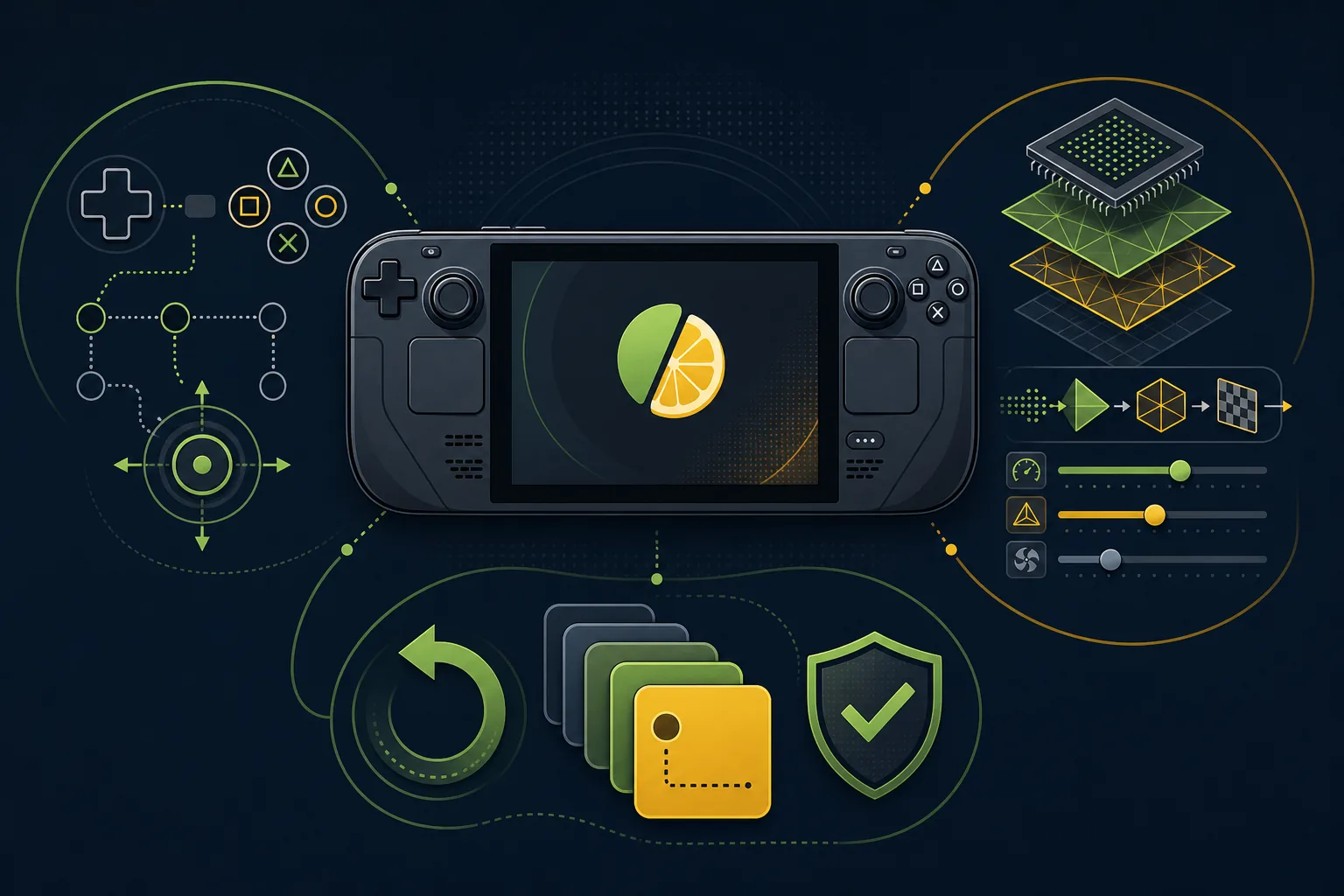
Version freshness
Update Citron without losing your working baseline
Nightly tags are moving targets. Verify the asset every time and keep the previous AppImage until the new one passes your own test.
Keep 2026-04-27 as the rollback build
The official stable tag is unchanged. Store it separately and do not overwrite it with a nightly file.
Verified official release: 2026-04-27.Commit 22d5038ec was published August 7, 2026
The standard x86_64 AppImage is 57,649,334 bytes. The x86_64_v3 option is 57,802,915 bytes.
Verified official nightly-linux tag and GitHub API.Test the new AppImage before changing the Steam shortcut
Launch it from Desktop Mode, test the same game and settings, then update the shortcut only after the comparison succeeds.
Preserve the old file and configuration backup until testing is complete.Common Steam Deck problems and focused fixes
Use the symptom table to avoid changing unrelated settings.
| Symptom | Check | Next step |
|---|---|---|
| AppImage does not open | Confirm x86_64 architecture, executable permission, complete download, and a stable local path. | Redownload from the official release and test from Desktop Mode. |
| Game Mode shortcut does nothing | Verify the Steam shortcut target still points to the existing AppImage. | Remove and re-add the non-Steam shortcut after a successful desktop launch. |
| Controls are duplicated | Compare Steam Input mapping with Citron's internal controller mapping. | Return one layer to defaults and remap only the missing actions. |
| A game stutters after an update | Compare the same title and settings on stable and the previous nightly. | Allow shader caches to rebuild, then roll back if the regression remains. |
| Citron cannot see game files | Confirm the folder path, storage permission, file ownership, and supported dump format. | Choose the directory again in Desktop Mode; do not download replacement ROM packs. |
| Performance changes after several tweaks | List every changed setting and return to the conservative baseline. | Reintroduce one setting at a time and record the result. |
FAQ
Citron Steam Deck questions
Which Citron file should Steam Deck users download?
Use the Linux x86_64 AppImage from the official Citron stable or nightly release. Do not use the Android APK, Windows ZIP, macOS DMG, or Linux aarch64 build on a standard Steam Deck.
Should I use stable or nightly on Steam Deck?
Start with stable 2026-04-27 if you want a known baseline. Test the August 4 nightly 22d5038ec only when you need a newer fix, and keep the stable AppImage for rollback.
Do I need Proton for the Linux AppImage?
No. The official Linux AppImage is a native Linux package. Proton is for Windows applications and should not be the default path for this file.
How do I add Citron to Game Mode?
Make the AppImage executable and test it in Desktop Mode, then use the desktop Steam client to add the AppImage as a non-Steam game.
What are the best Citron settings for Steam Deck?
Use Vulkan, native resolution, the standard Steam Input Gamepad layout, and default SteamOS power settings first. Tune for a specific game only after you have a repeatable baseline.
Does this guide include games, keys, or firmware?
No. Use only game dumps, keys, and firmware obtained legally from hardware and content you own.
Sources
Official and community references
The release facts and installation flow were checked against these pages on August 7, 2026.
- Citron stable release 2026-04-27Confirms the stable tag, Linux x86_64 AppImage, and rollback baseline.
- Citron CI Linux nightlyConfirms current Linux nightly commit 22d5038ec, filenames, sizes, and official download targets.
- EmuDeck Citron community guideProvides community context for Citron on Steam Deck and EmuDeck-style organization.