Linux download guide
Citron Emulator Linux Download: AppImage Setup Guide
Use this Linux-focused Citron emulator guide to choose the right AppImage, check the verified GitHub source, make the file executable, and keep stable and nightly builds separate. The current Linux nightly was checked on August 7, 2026 as build 22d5038ec; the stable release remains 2026-04-27. This site links to official release assets and does not provide games, ROMs, firmware, prod.keys, or title.keys.
Download buttons open the verified GitHub file after a 15-second safety countdown.

Checked on August 7, 2026
Current Citron emulator Linux builds
The stable Linux baseline is the dated 2026-04-27 release. Its x86_64 AppImage was checked with an HTTP 200 response, application/octet-stream MIME type, and a 97,390,347-byte Content-Length. Stable is the sensible starting point when you want a known fallback and do not need a recent Linux-specific fix.
The Linux nightly channel was checked on August 7, 2026 and now points to build 22d5038ec. The general x86_64 AppImage is 57,650,946 bytes, the x86_64_v3 build is 57,802,807 bytes, and the aarch64 build is 57,591,616 bytes. These are release-asset measurements, not a guarantee of performance or safety; verify the filename and date again before every future download.
Linux release facts
The stable and nightly buttons use stable GitHub download paths. GitHub may redirect them to a temporary asset URL, so the final signed redirect is not stored on this site.
Match the architecture
Which Citron emulator Linux AppImage should you choose?
| Build | Best for | File to look for | Caution |
|---|---|---|---|
| Linux x86_64 | Most Intel and AMD 64-bit desktop PCs, laptops, and the usual Steam Deck Linux workflow. | citron_nightly-22d5038ec-linux-x86_64-use-nopgo.AppImage | Use the general x86_64 package unless you have a reason to test another build. |
| Linux x86_64_v3 | A compatible x86_64_v3 CPU when you intentionally want to test that optimized build. | citron_nightly-22d5038ec-linux-x86_64_v3.AppImage | Do not choose it only because the filename looks newer; CPU compatibility still matters. |
| Linux aarch64 | Linux ARM64 hardware that explicitly reports an aarch64 userspace and matching graphics stack. | citron_nightly-22d5038ec-linux-aarch64-use-nopgo.AppImage | An ARM64 system cannot use the normal x86_64 AppImage just because both files end in .AppImage. |
AppImage install flow
How to install Citron Emulator on Linux
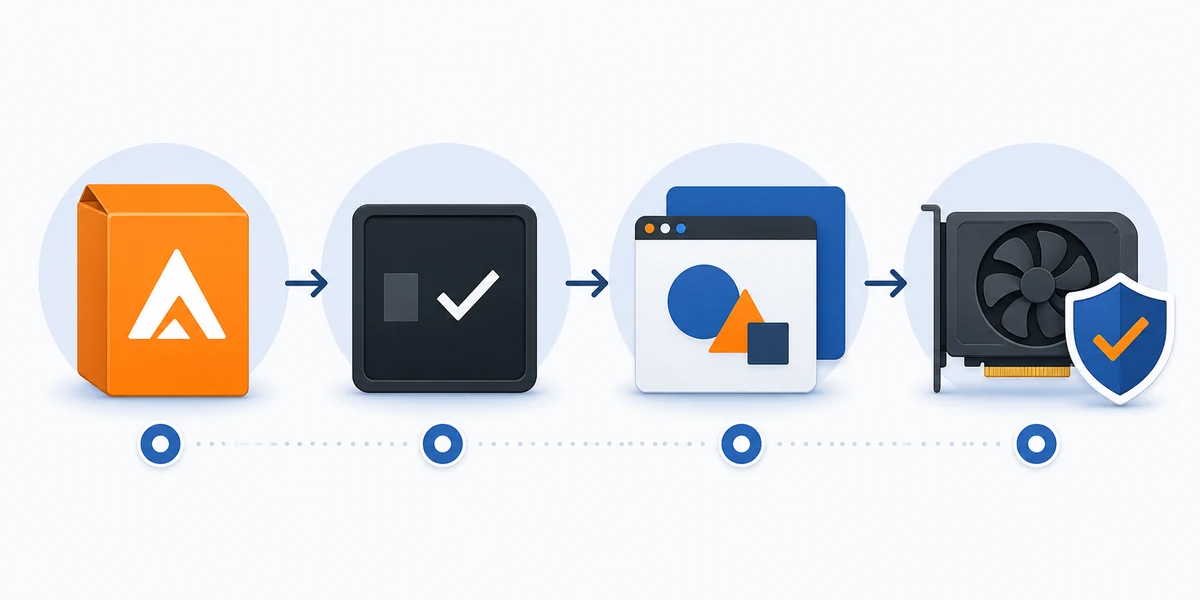
Use the verified GitHub asset
Open the official citron-neo release source and compare the repository owner, release tag, filename, date, and byte size. The Linux nightly tag can move forward while the URL stays familiar, so do not rely on an old copied filename.
Place the AppImage in its own folder
Create a simple folder for the stable build and another for nightly testing. Keeping them separate prevents one build from reusing an unexpected configuration or cache while you are trying to identify a Linux issue.
Allow execution, then launch
In a file manager, open the file properties and enable permission to execute it as a program, or use the normal chmod +x workflow in your terminal. Launch from the extracted or dedicated folder rather than from a browser download preview.
Test one clean first launch
Confirm that the window opens before importing settings, controllers, or local files. If you need firmware, keys, or game directories, use only files you are legally allowed to dump or possess; this site does not host or link protected files.
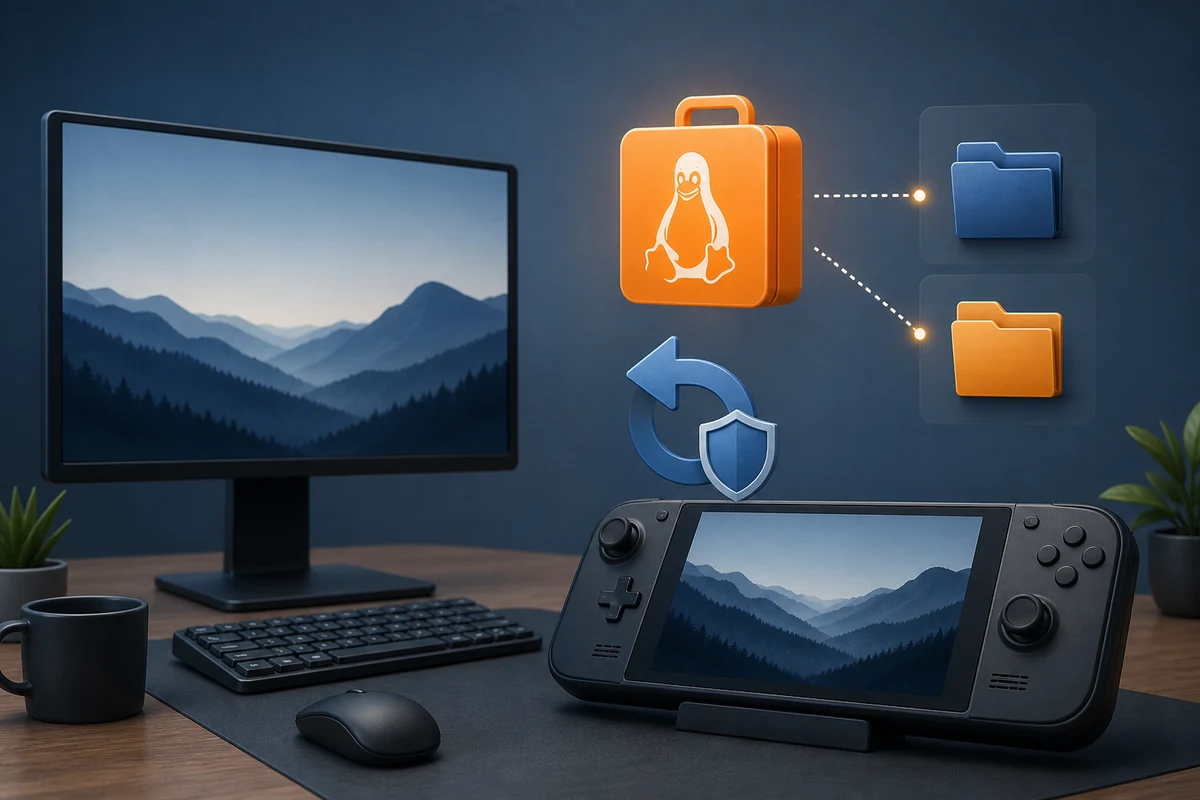
After the first launch
Linux checks that matter after the download
A correct Citron emulator Linux download is only the first checkpoint. AppImage behavior also depends on the desktop session, FUSE or compatible runtime support, GPU driver, Vulkan availability, CPU architecture, controller permissions, and the game-specific compatibility case. If the application opens but one title fails, do not immediately download another random build.
Stable and nightly builds should be treated as separate test variables. Keep the stable 2026-04-27 release available, record the nightly hash 22d5038ec, and change one setting at a time. This makes it easier to tell whether a problem comes from the new build, a graphics driver, a controller profile, or an unrelated local file.
- Check that the AppImage architecture matches uname -m or your distribution's hardware information.
- Update Vulkan and GPU drivers from your distribution or the hardware vendor's official channel.
- Keep stable and nightly in separate folders and retain the build hash in your notes.
- Use legally sourced game dumps and local setup files; do not download ROM, NSP, XCI, keys, or firmware packs.
Linux troubleshooting
Common Citron emulator Linux problems
The AppImage says permission denied
Confirm that execution permission is enabled and that the file is on a local filesystem you can run programs from. Re-download only from the verified GitHub source if the file itself looks incomplete.
The AppImage does not start at all
Check the terminal error, FUSE or runtime support, CPU architecture, and whether the download was interrupted. Do not replace a Linux AppImage with a Windows ZIP or Android APK.
A game opens with graphics errors
Compare the GPU driver and Vulkan path, test the stable build, and keep the same settings while comparing. A new nightly can change behavior without proving that the release file is corrupt.
Steam Deck controls or Game Mode behave differently
Start in Desktop Mode, verify the AppImage there, then add the program to Game Mode only after the first launch works. The Steam Deck guide covers device-specific controller and rollback notes.
Linux download FAQ
Questions about Citron Emulator on Linux
What is the latest Citron emulator Linux build?
Checked on August 7, 2026: the Linux nightly channel points to build 22d5038ec. The stable tag remains 2026-04-27. Check the official nightly-linux release again before a later download because the tag and assets can change.
Which Linux AppImage should most users download?
Use the general x86_64 AppImage when your Linux system is a normal Intel or AMD 64-bit desktop or laptop. Use x86_64_v3 only when your CPU is compatible, and use aarch64 only on matching ARM64 hardware.
Can I use the Linux AppImage on Steam Deck?
A Linux x86_64 AppImage can be a starting point for Steam Deck, but the device workflow has extra Desktop Mode, Game Mode, controller, and rollback considerations. Follow the separate Steam Deck guide for that device-specific setup.
Do I need to install Citron with a package manager?
This page covers the official AppImage release path. An AppImage is a portable package, but it still needs matching architecture, execution permission, a usable graphics stack, and a safe folder for its configuration.
Does this site provide keys, firmware, ROMs, or game files?
No. Citron Neo Wiki does not host or link prod.keys, title.keys, firmware packs, ROMs, NSP files, XCI files, or copyrighted game downloads. Use only files you are legally allowed to use.
Should I use stable or nightly on Linux?
Use stable as the normal fallback. Try nightly when you have a specific fix or compatibility change to test, keep it in a separate folder, and record the hash before changing settings.
Verified first-party Linux sources
- Stable Citron Neo Linux release Stable release page and the dated Linux AppImage source.
- Citron CI nightly Linux release Current Linux nightly tag, commit 22d5038ec, asset filenames, and release metadata.
- Citron Neo source repository First-party project source and release context; this wiki is an independent guide.